• Android India
  • Dual Sim 3G
  • iPhone Apps
  • Android Apps
  • About

Logo

Navigation
  • Mobiles
    • 3G Dual Sim
  • Tablets
  • Netbooks
  • Android
  • Apple
  • Apps
    • iPhone Apps
  • Contact
  • About

How to import contacts from iPhone to Android?

By Sriram Vadlamani | on December 27, 2010 | 7 Comments
Android Apple Mobiles

On a fine Boxing day, you have decided to hang your boots. I am not talking about Ricky Ponting but your adorable iPhone. You finally said, alright Steve, enough pampering. I want out. I want out of the super slick, non-fragmented, i-don’t-know-what-goes-inside and i-cant-use-without-a-bloated-itunes-install of the iPhone user experience. Steve says, not so fast cowboy. You can get in easily but you can’t get out so easily. I will make it so tough for you that you have to search your way through to find out.

Exporting iPhone contacts isn’t so easy. I couldn’t find an option to copy the contacts to SIM or vice versa. Sometimes you just don’t know where your contacts are saved. There is still a way. Steve Jobs loves you so much that he doesn’t want to lose you. But he isn’t evil. All you have to do is, follow this simple guide. There are two methods. One is to simply sync iPhone contacts with Google Contacts and then access it from any Android phone. This is by far the simplest and most practical way. The second method is to export iPhone contacts as a csv file and then import to Google contacts and then sync with your Google account from your Android phone. This is the longest and safest way.

I have done it using both the methods and both work perfectly fine. To be safe, I have exported the contacts to a csv file and then done the Google Contacts sync from Android.

First method : Exporting to Google directly from iTunes

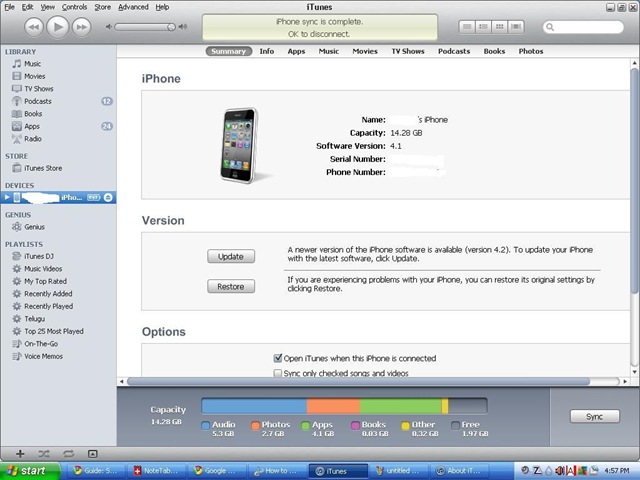
1. Connect your phone to the computer, bring up iTunes and let it complete the sync ritual. Your screen should look like this :
iphone to android iphone contacts to android contacts iphone contacts iPhone export iphone contacts Android India Android

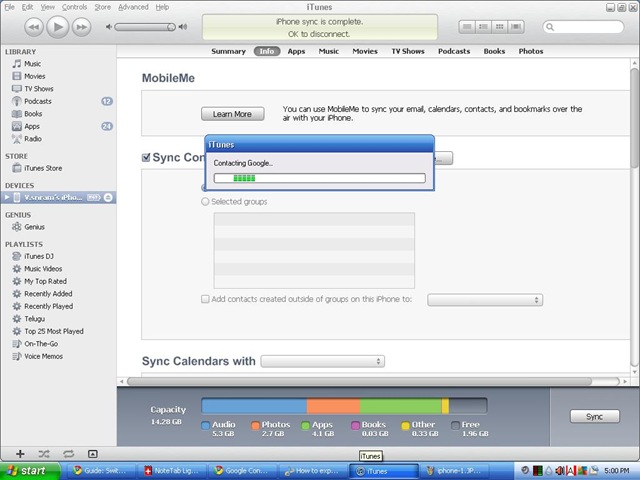
2. Hit Info and check “Sync Contacts with” box and select Google Contacts option. Click Configure to enter your GMail credentials.
iphone to android iphone contacts to android contacts iphone contacts iPhone export iphone contacts Android India Android

3. Once iTunes contacts the Google server, it provides an option to Merge or Replace contacts on iPhone with Google Contacts. Choose Merge. I repeat, Choose Merge.

4. All your iPhone contacts are in Google which can be accessed and synced back from any Android phone. Check Step 7 of next method.

Second method : Exporting to csv and then to Google and then to Android

1. Connect your phone to the computer, Open iTunes and click on the phone.
After the syncing is completed, click on your iPhone in iTunes, Click Info and check “Sync Contacts With” and select “Windows Address Book. Hit Sync.

iphone to android iphone contacts to android contacts iphone contacts iPhone export iphone contacts Android India Android

2. Open Run dialog box and type “wab” without the quotes. This would bring up the Windows Address Book. All your address entries should be visible in here. If not, then you might need a restart of the app, iTunes or windows. You know the good stuff of the Windows OS.

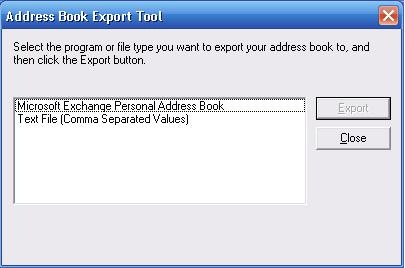
3. From the Windows Address Book, Go to File/Export/Other Address Book and select Text File option as shown below.
iphone to android iphone contacts to android contacts iphone contacts iPhone export iphone contacts Android India Android

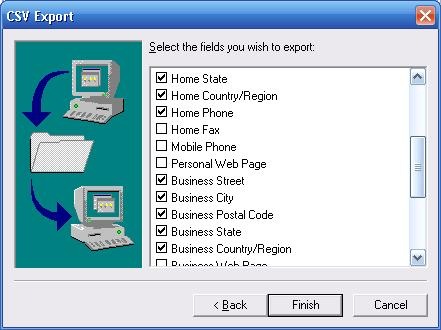
4. Give a name to the csv file and scroll down with the options and select “Mobile Phone” checkbox along with other default selections. As you can see from below, it is not checked on. You have to check that box. Hit Finish. You will now have a csv file with all your contacts from iPhone. Check here for more screenshots.
iphone to android iphone contacts to android contacts iphone contacts iPhone export iphone contacts Android India Android

5. Go to Google Contacts, Hit Import and browse through for the csv file and hit Import. You should now have all your iPhone contacts on to your Google account.

6. When you power up the Android phone, and hit Phone, Go to contacts and the hit the menu option (usually three horizontal lines or four squares or four dots at the bottom of the screen). This should give an option called “Accounts”. Hit it and you should be able to add your Google contacts account via your GMail login.

Yes. That’s what it takes to get your contacts from iPhone to an Android phone. Or, this is the process I followed to move from iPhone to Android. If there’s an easy way then let us all know using the comments section.
Related posts:

IMG_0711_thumb.pngVLC iPhone app now available. Thank you [Review] GoogleeBooks_thumb.jpgGoogle eBooks comes to iPhone, iPad Android and the browser too! Micromax Android A60 : What’s with the ad? Nokia5233_thumb.jpgIs it time for Nokia to adopt Android?
Share this story:
  • tweet

Tags: AndroidAndroid Indiaexport iphone contactsiPhoneiphone contactsiphone contacts to android contactsiphone to android

Recent Posts

  • Google Nexus 4 finally arrives in India?

    May 15, 2013 - 0 Comment
  • Touchscreen Laptops- A User’s Perspective

    May 13, 2013 - 0 Comment
  • Micromax launches 3D phone- For whom?

    May 3, 2013 - 0 Comment

Related Posts

  • Are App Numbers on Mobile OS that Important?

    April 29, 2013 - 0 Comment
  • 5 Most Important aspects of a Mobile OS!

    January 4, 2013 - 0 Comment
  • The OS Problem – To Android or Not To Android

    October 22, 2012 - 0 Comment

Author Description

Sriram Vadlamani is the Editor and co-founder of TheGadgetFan and a columnist at Asian Correspondent. You can follow him on twitter @indianomics (Email: sriram.vadlamani@gmail.com | Bio). Add him to your Google circle.

7 Responses to “How to import contacts from iPhone to Android?”

  1. January 14, 2011

    8 things to do first on your Android phone! Reply

    [...] If you are moving from a different smartphone like an iPhone, then your contacts might have been stored on the phone itself. This could be a pain if not done properly. Don’t worry we got just the thing for you. You have to sync your contacts from iPhone using iTunes with the Google Contacts. After which you have to import the contacts from the Android phone. The process is detailed with screenshots here. [...]

  2. January 18, 2011

    Pirategirl299 Reply

    Awesome. I have a Mac and still got my contacts to sync. Thank you!,!

  3. September 20, 2011

    Alexis Reply

    My iphone broke so i can't plug it up to do this. How else can i get my contacts?

  4. September 20, 2011

    Alexis Reply

    My iphone broke so how else can i get my contacts to my android?

  5. December 16, 2011

    mariolopezt Reply

    Thanks man! It was very easy.

  6. August 20, 2012

    gopal Reply

    Awesome. Galaxy S3 got resynchronised as soon as the contacts were imported in Gmail contacts. Thanks a lot.

  7. August 20, 2012

    GopalK Reply

    Thanks a lot. I could resynch in a jiffy.

Leave a Reply Cancel reply

Keep updated with us:

Get news in your inbox as it happens or just once a day. Keep updated with all Gadget info you need!

RSSSubscribe
  • Popular Posts
  • Recent Posts
  • Comments
  • Wespro ePad : Cheapest Tablet available in India! Cost : Rs. 7999

    October 25, 2010 - 58 Comments
  • 10 cheapest Android phones in India!

    November 23, 2010 - 47 Comments
  • Bharat Electronics $75 Android tablet is ‘Made in India’ and solar powered

    August 5, 2011 - 28 Comments
  • LG Optimus Black: My First Impressions!

    July 2, 2011 - 26 Comments
  • Comparison : Olivepad vs Samsung Galaxy Tab

    November 1, 2010 - 25 Comments
  • Samsung ES5600 Smart TV [Video Review]

    October 9, 2012 - 21 Comments
  • List of Tablets and Phones getting Android Ice Cream Sandwich [updated]

    December 1, 2011 - 19 Comments
  • Asus Transformer tablet comes to India, doubles up as a Netbook, runs Android Honeycomb

    July 20, 2011 - 16 Comments
  • Micromax Van Gogh X450 : World’s first mobile with dockable bluetooth headset

    June 22, 2011 - 15 Comments
  • MTS brings 3G Tablet powered by Android 2.3 to India. Price: Rs. 8000

    September 8, 2011 - 15 Comments
  • Google Nexus 4 finally arrives in India?

    May 15, 2013 - 0 Comment
  • Touchscreen Laptops- A User’s Perspective

    May 13, 2013 - 0 Comment
  • Micromax launches 3D phone- For whom?

    May 3, 2013 - 0 Comment
  • Top 5 Mobile apps to help you Discover New Music

    April 29, 2013 - 0 Comment
  • Are App Numbers on Mobile OS that Important?

    April 29, 2013 - 0 Comment
  • With The S3 Duos / Grand Duos, Is The Dual SIM Phone Finally Moving Up The Price Ladder?

    April 12, 2013 - 1 Comment
  • Can Galaxy S4 outdo S3 popularity?

    March 13, 2013 - 0 Comment
  • 10 Gadgets to look forward to in 2013

    March 13, 2013 - 1 Comment
  • Best Buy Guide For Affordable Cameras in India

    March 8, 2013 - 0 Comment
  • How Cell Phones adversely affect your health [Infographic]

    January 31, 2013 - 2 Comments
  • Samsung ES5600 Smart TV [Video Review]

    hi i want to know ...does this tv support usb recording for tv shows...
    May 11, 2013 - mushfik
  • With The S3 Duos / Grand Duos, Is The Dual SIM Phone Finally Moving Up The Price Ladder?

    nice
    April 26, 2013 - anmol
  • Samsung ES5600 Smart TV [Video Review]

    Hi, I purchased Samsung LED 32" Model ES5600 on 06 Apr 2013. It is a...
    April 8, 2013 - Anand KSA
  • 10 Gadgets to look forward to in 2013

    bendable smartphones and xbox 720 would be definitely a lookout of...
    April 5, 2013 - Hemant Jain
  • Samsung ES5600 Smart TV [Video Review]

    Hey Ra - Glad to know you bought ES5600 - I hope you are happy with...
    March 26, 2013 - arun
  • Samsung ES5600 Smart TV [Video Review]

    Hi Arun, Thanks for the review. I bought es5600 last week. I...
    March 26, 2013 - Ra
  • Contact Us
© 2012. All Rights Reserved. The Gadget Fan